Manager Guide
A Manager account is the nominated point of contact for a contractor company in AFS Connect. This guide covers the Manager-only features: viewing and managing your team, inviting new staff, and assigning shifts. Screens shown here are Android - see the iOS version if you're on an iPhone.
For everyday tasks - signing in, viewing and claiming your own shifts, clocking on and off, attendance history, your profile, and deleting your account - a Manager account works exactly the same way as a Team Member's. Those steps are covered in full in the Team Member Guide; this guide doesn't repeat them.
1. Getting Started
Activating a Manager account works exactly like a Team Member's, using an activation code provided by AFS. See Getting Started in the Team Member Guide for the full walkthrough. The only difference is that your invitation is issued with the Manager role, which is what gives you access to the Team tab described below.
2. Finding Your Way Around
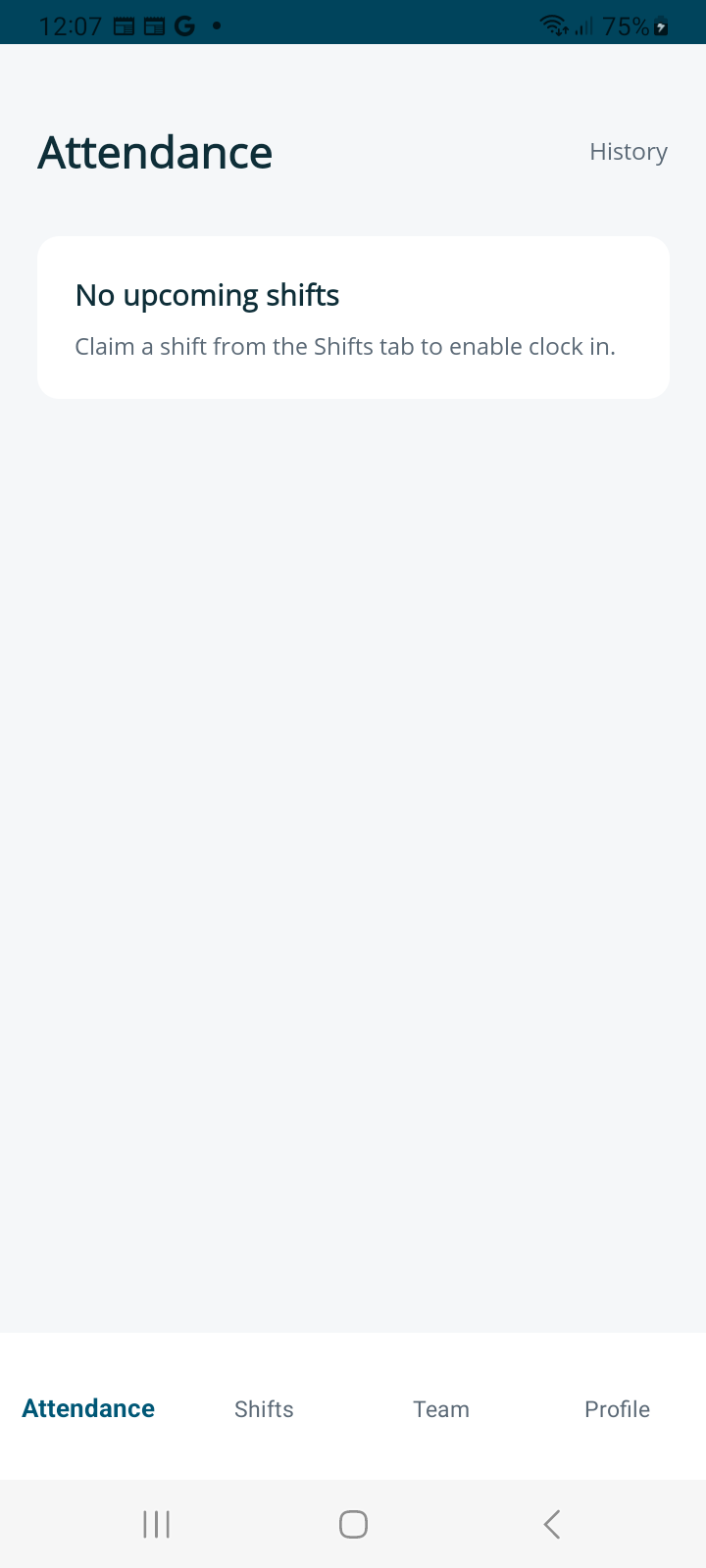
A Manager account has four tabs at the bottom of the screen, one more than a Team Member:
| Tab | What it's for |
|---|---|
| Attendance | Your own current clock-in status. |
| Shifts | Shifts you can claim or have claimed, for yourself. |
| Team | Your company's staff: who's active, who's pending, and each person's shift and attendance detail. |
| Profile | Your details, Attendance History, app information, and Sign Out. |
3. Viewing Your Team
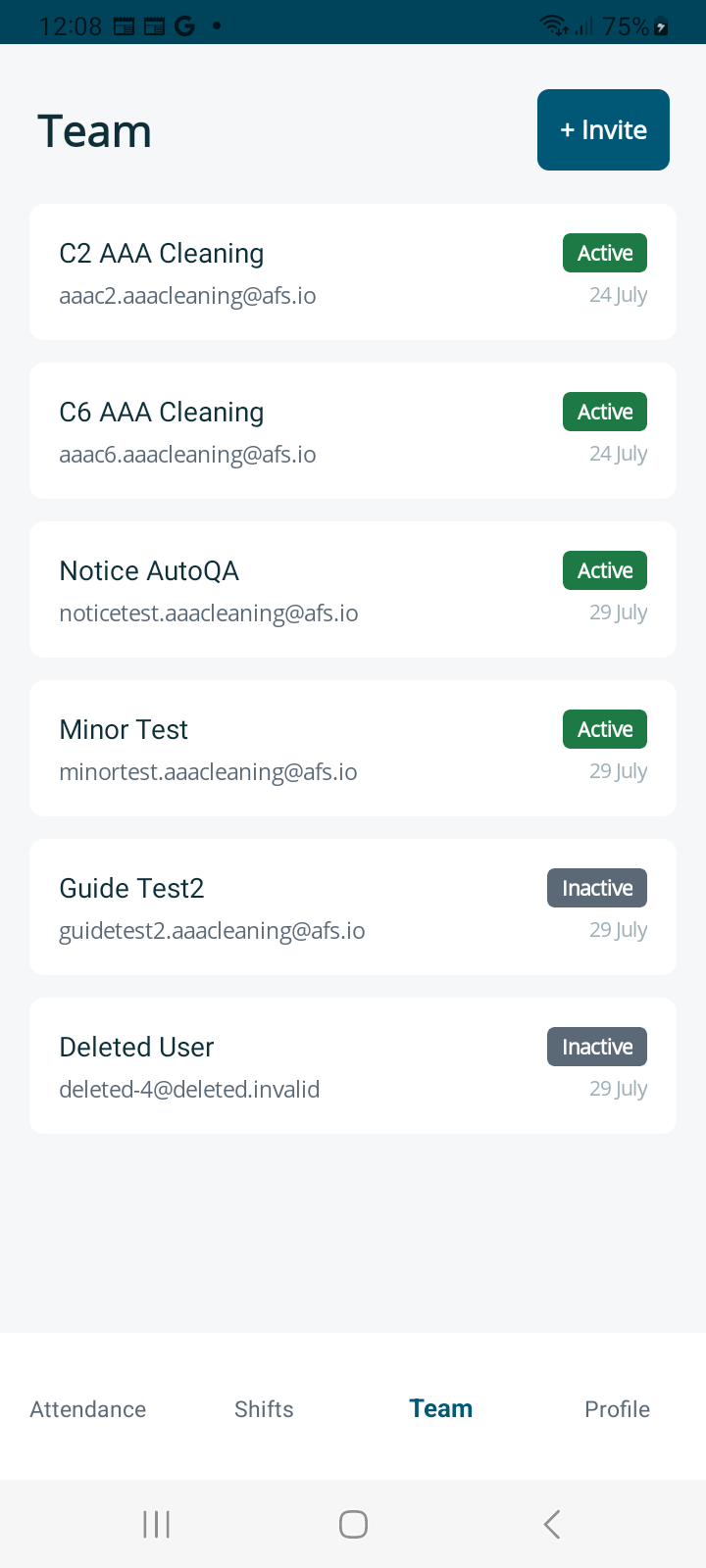
Open the Team tab to see every staff member at your company, with an Active or Inactive badge, their email, and when they were last seen in the app.
4. Viewing a Team Member's Details
Tap anyone in the list to open their Staff Detail page.
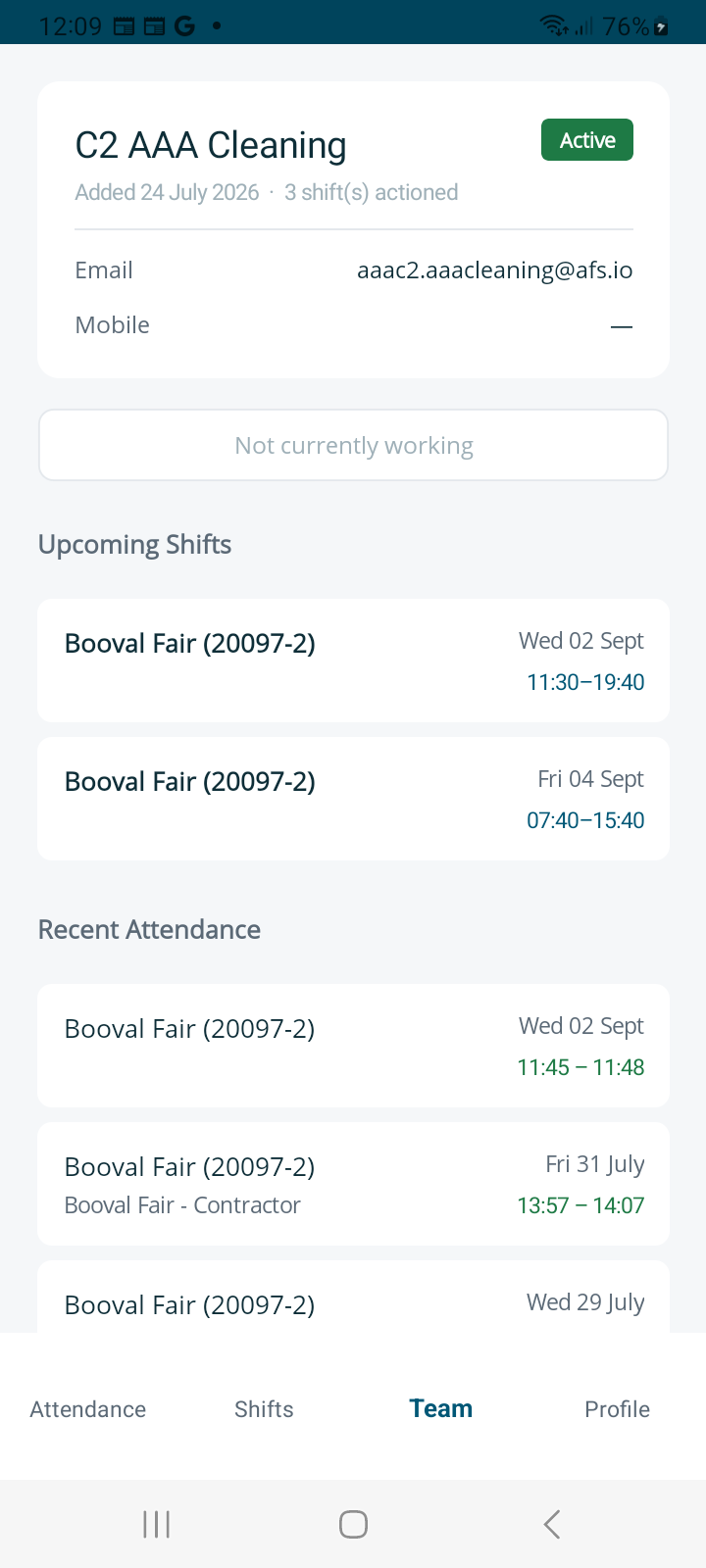
This shows:
- Name, Active/Inactive status, the date they were added, and how many shifts they've actioned
- Email and Mobile number
- A live Currently Working card if they're clocked in right now, showing the site, area, shift window, and clock-in time
- Their Upcoming Shifts and Recent Attendance
- A Remove from Team button (see Section 8)
5. Inviting a New Team Member
- On the Team tab, tap + Invite.
- Enter their First name, then Last name, then Email address when prompted.
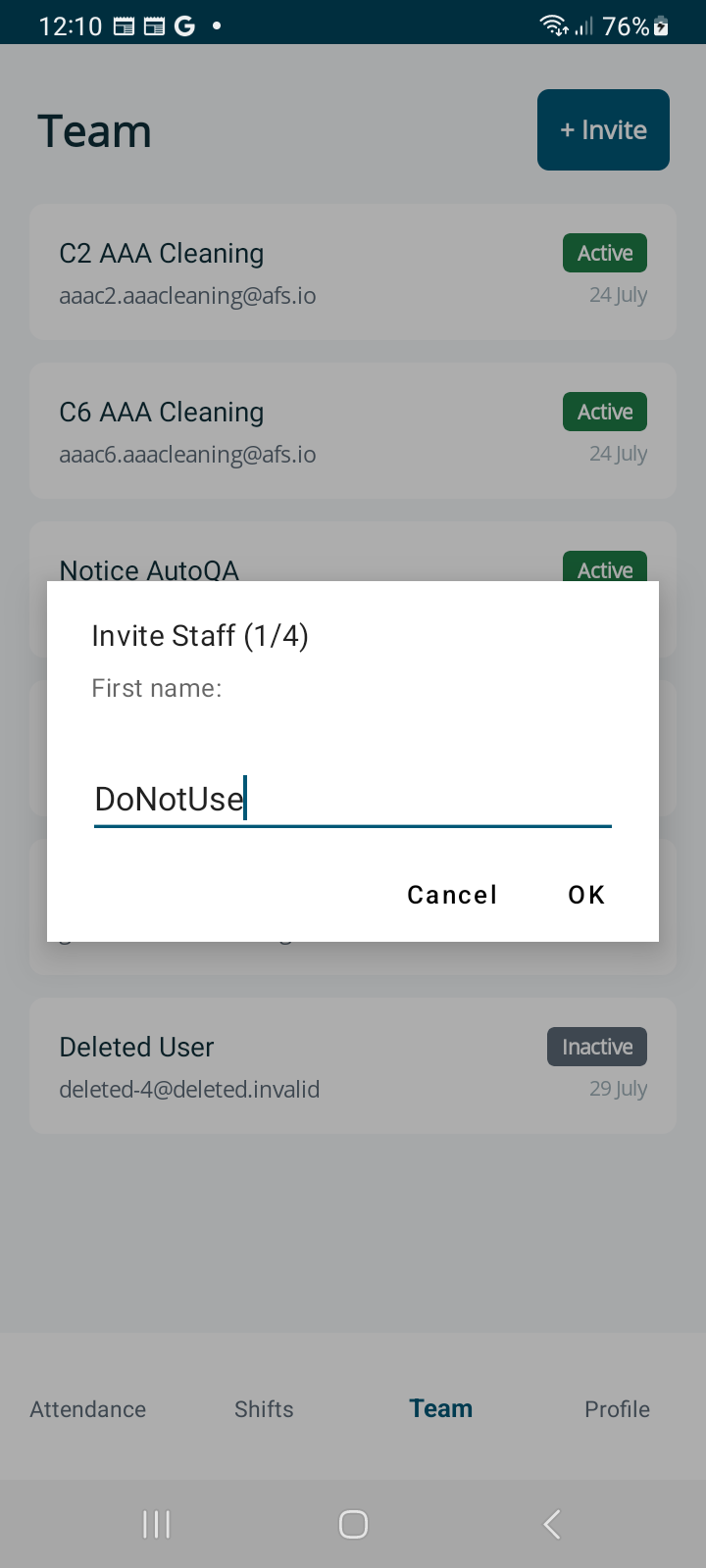
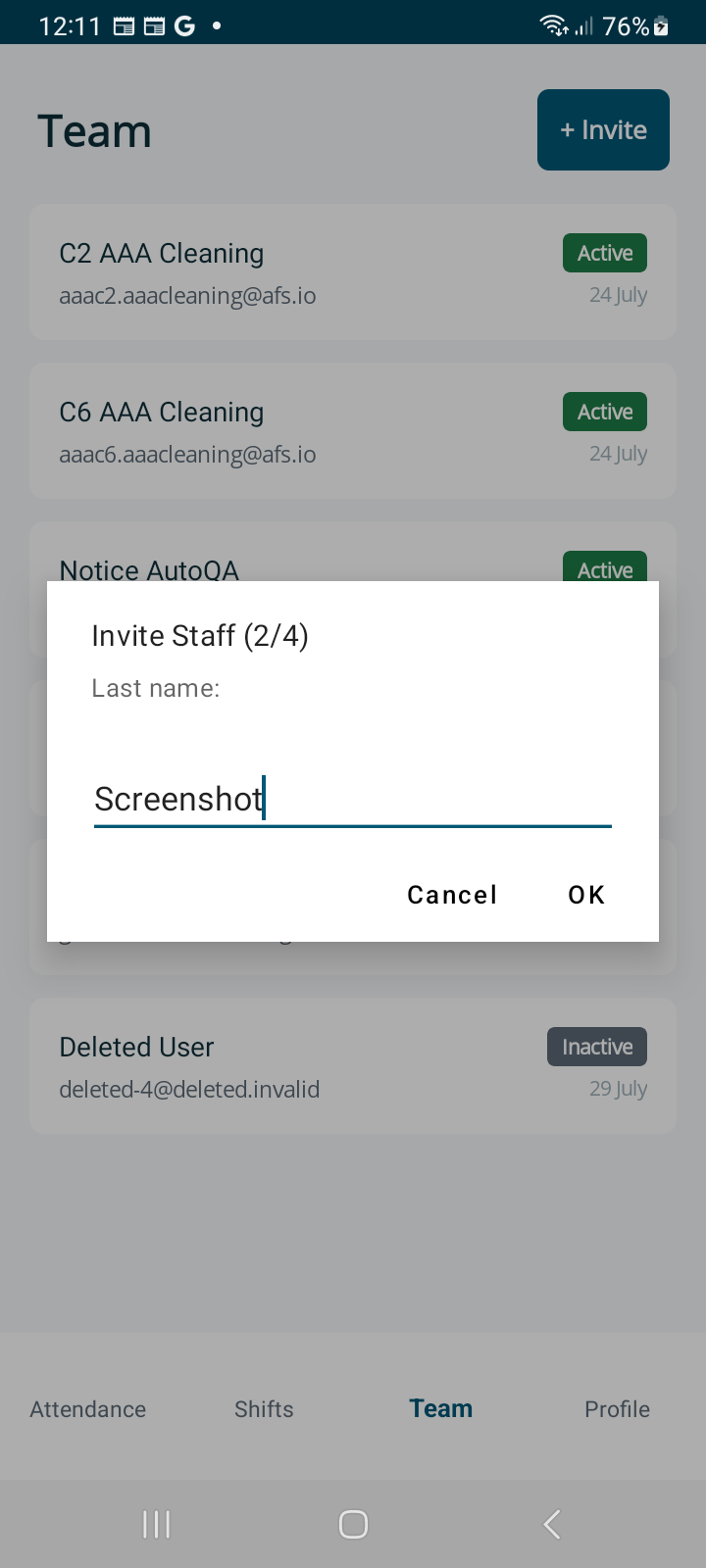
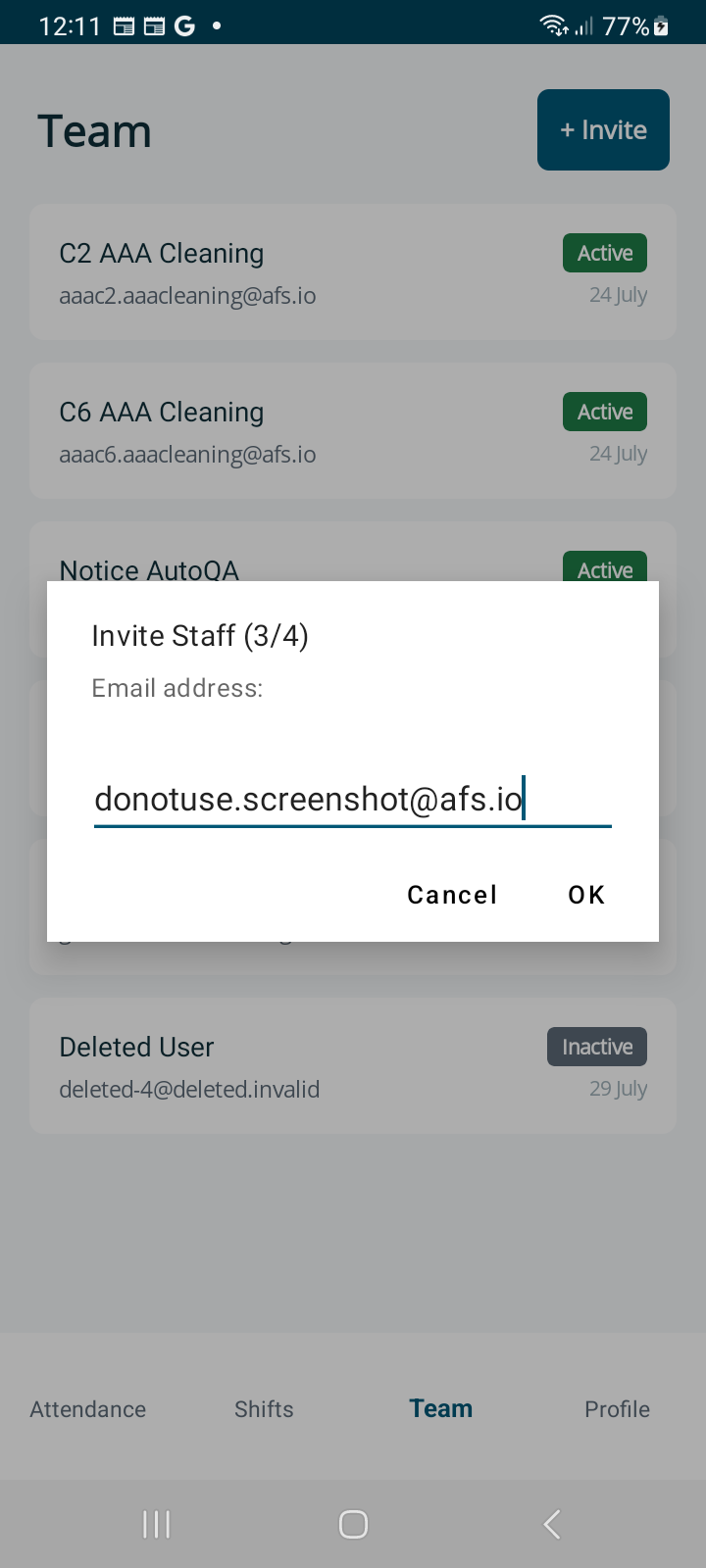
- A code is generated, the new starter is emailed their activation code, and a confirmation is shown.
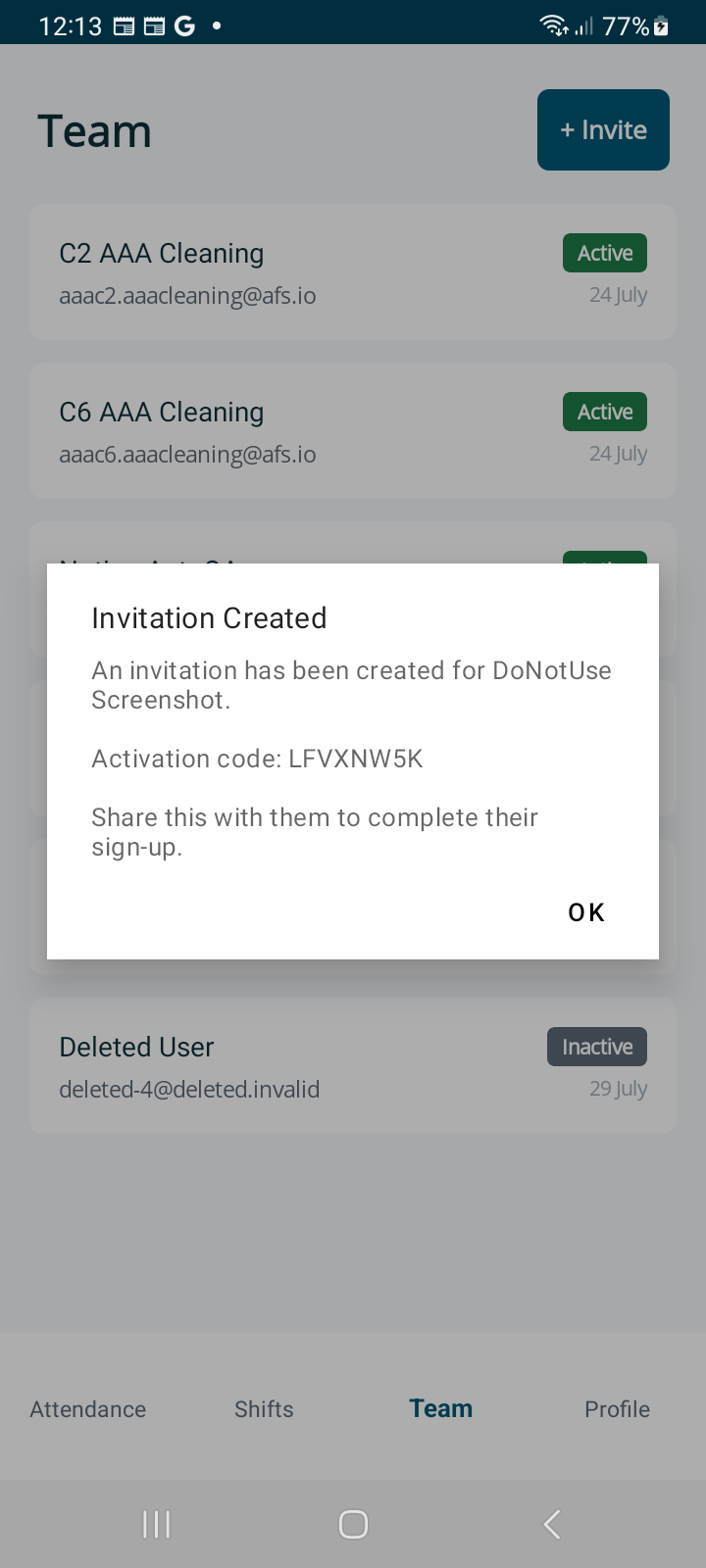
Result: the new person appears under Pending Invitations on the Team tab until they activate their account.
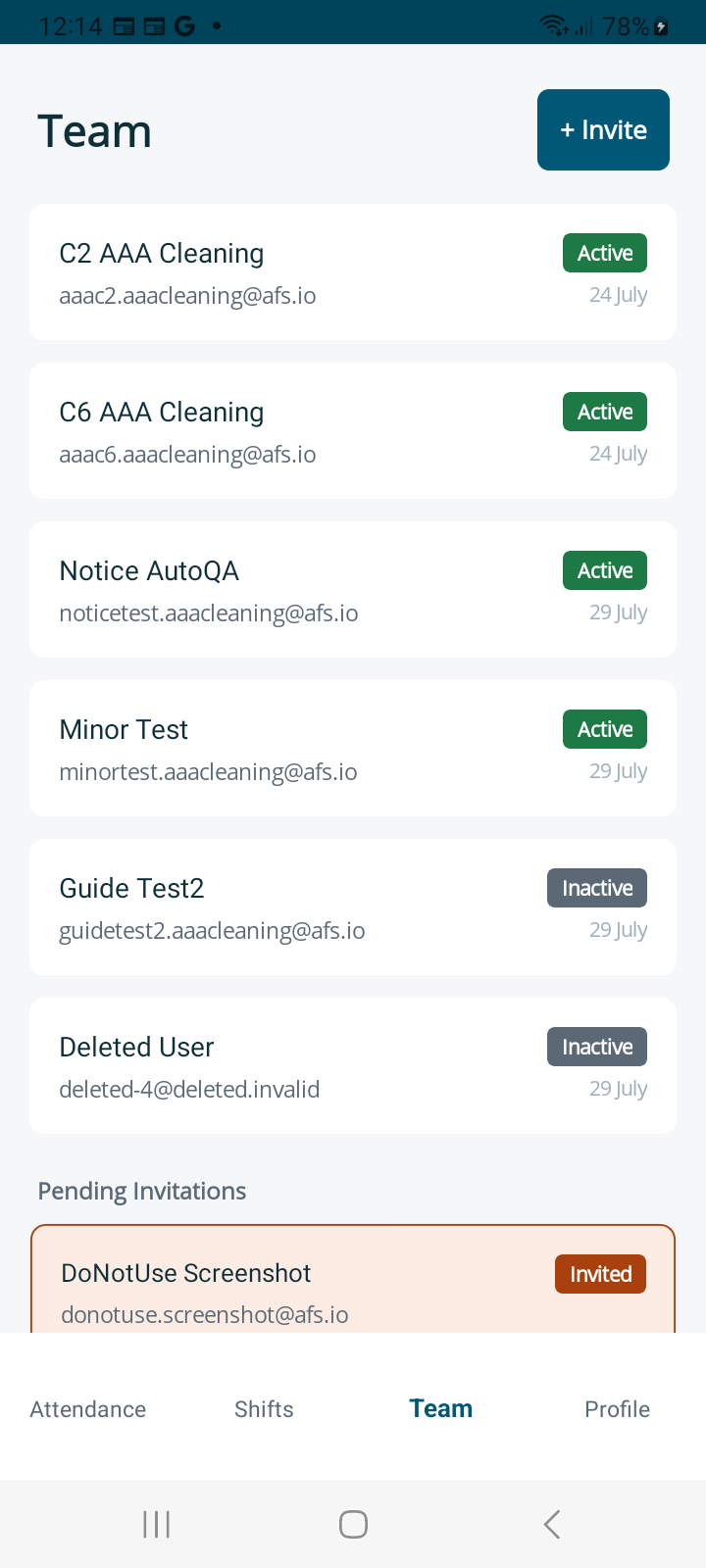
6. Managing a Pending Invitation
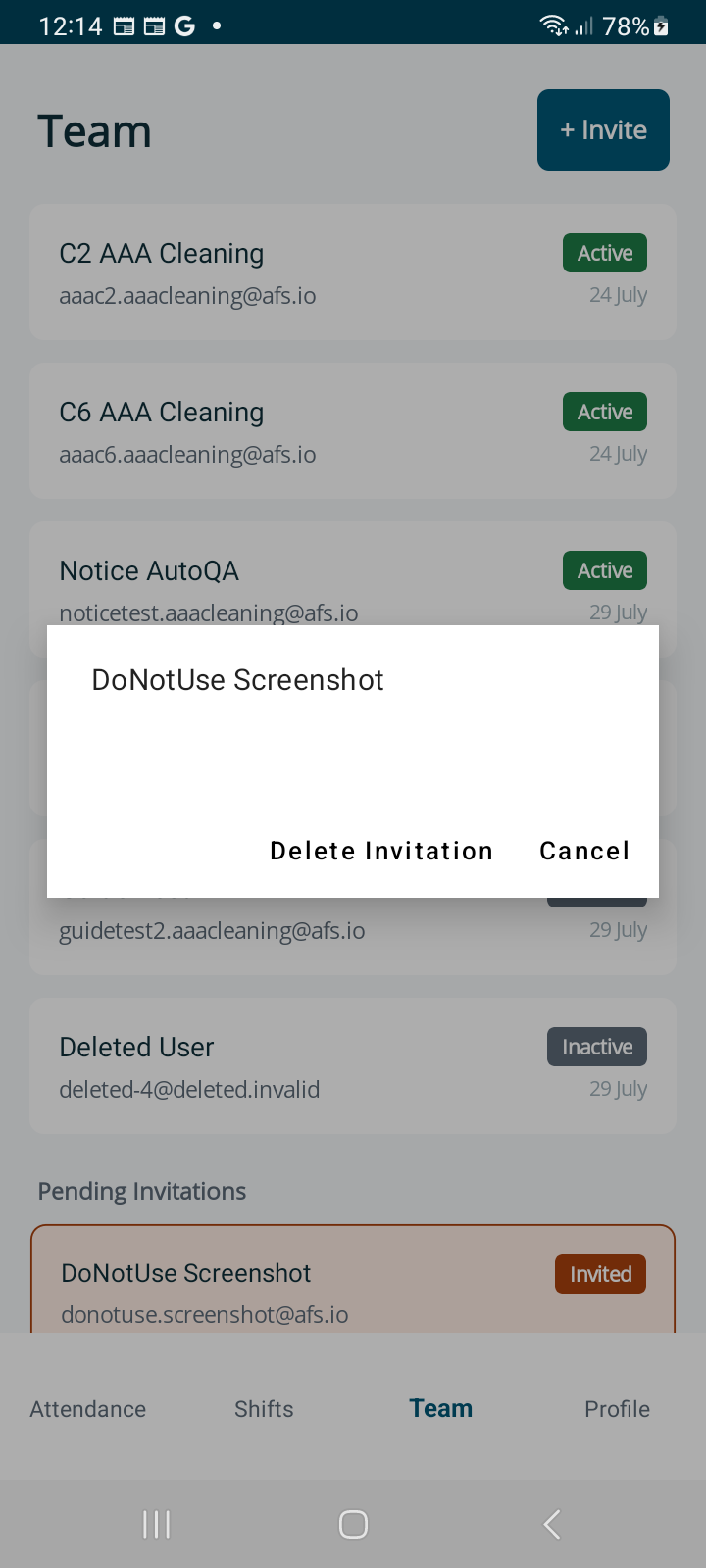
Tap a pending invitation to open it. If it was created in error, or has expired before the person activated, you can Delete Invitation from here.
7. Assigning a Shift to a Team Member
As a Manager, you can put an available shift directly onto one of your team's schedules instead of leaving it for someone to self-claim.
- Open the shift, from the Available list on the Shifts tab, or via Shift Details, and tap Assign to....
- Choose the team member from the list of your active staff.
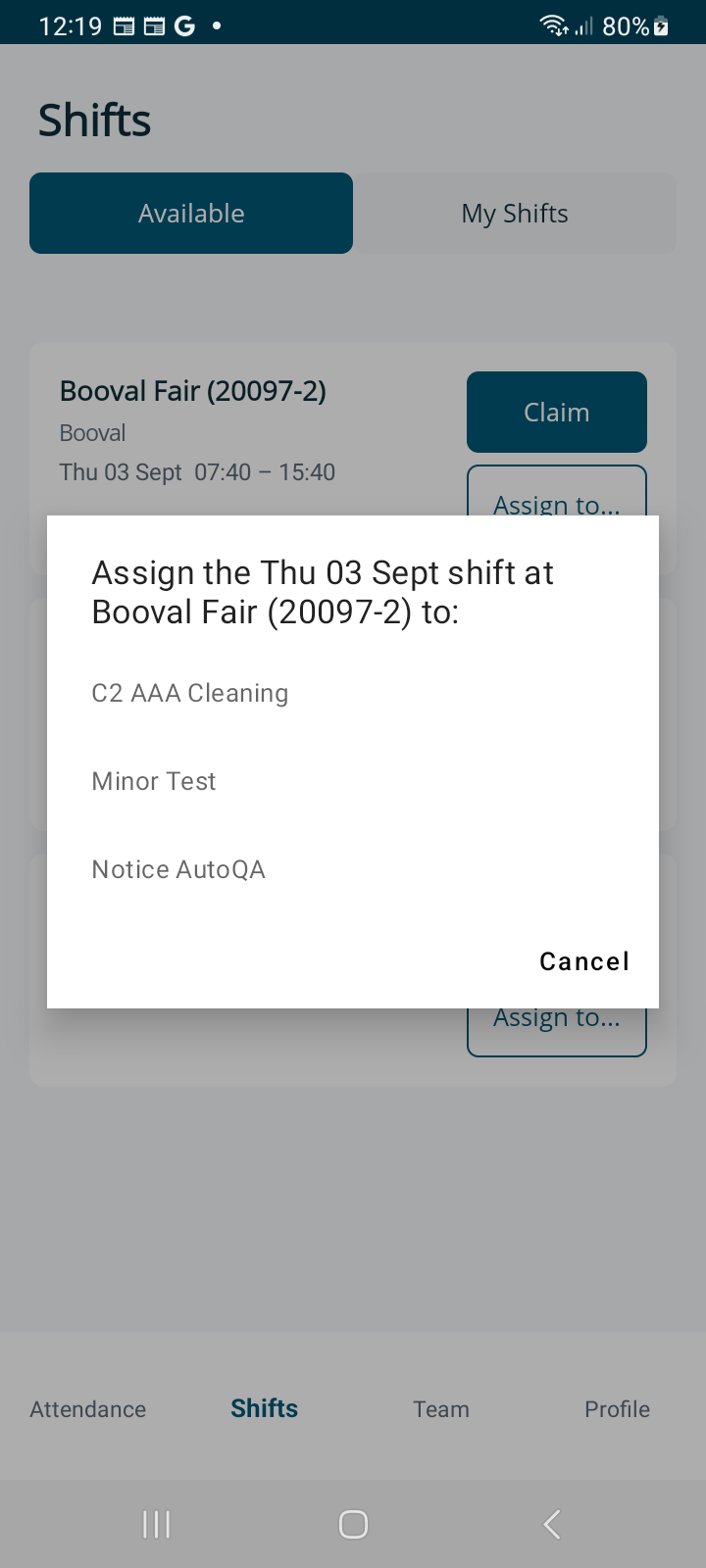
- Confirm.
The shift is claimed on their behalf, and appears on their My Shifts the same as if they'd claimed it themselves.
8. Removing a Team Member
- Open the team member's Staff Detail page.
- Scroll down and tap Remove from Team.
- Confirm in the dialog.
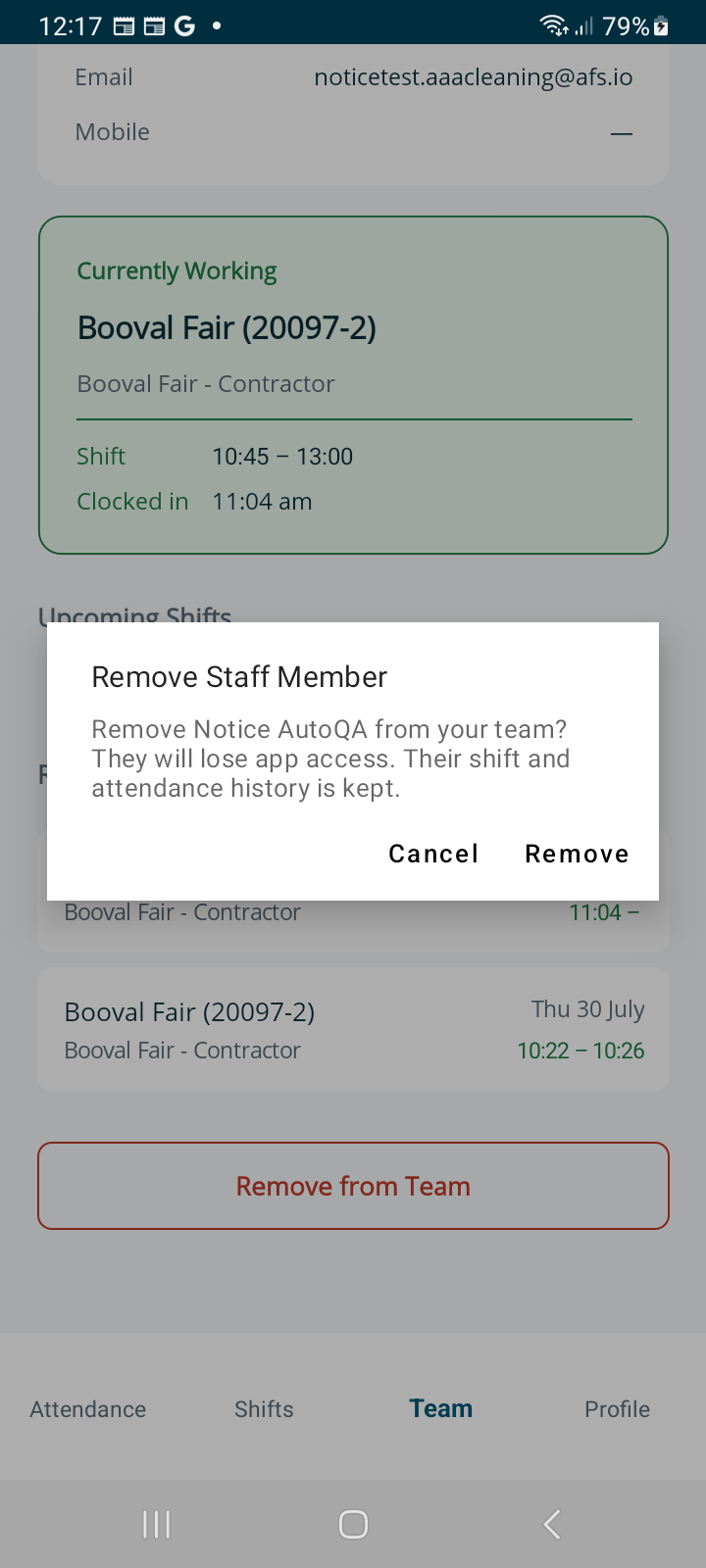
Result: the person is deactivated, shown as Inactive in the Team list, and immediately loses access to the app. Their shift and attendance history is kept, nothing is deleted.
9. Your Own Shifts and Attendance
As a Manager, you can also claim and work shifts yourself, using your own Attendance and Shifts tabs. These work identically to a Team Member's, see the Team Member Guide for full details on:
- Viewing and claiming available shifts
- Viewing shift details, including shift instructions and your site's CSM contact
- Clocking on and off, including how the geofence check and offline handling work
- Continuing a shift after a break
- Releasing a claimed shift
- Viewing and exporting your Attendance History
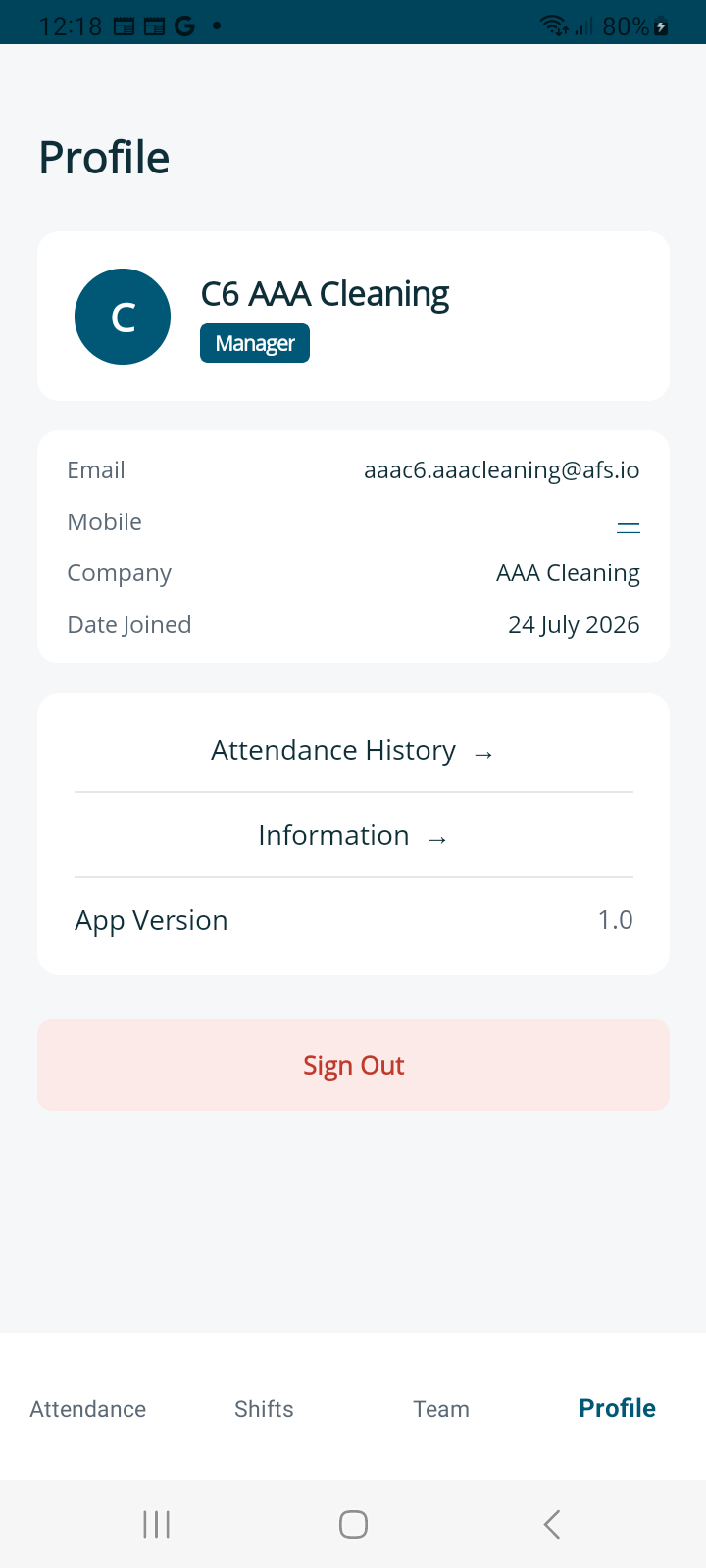
Your Profile works the same way too, including updating your mobile number, Sign Out, and Delete My Account, just with a blue Manager badge instead of an orange Staff one.
10. Getting Help
If something isn't working as expected, or you have a question this guide doesn't cover:
Email: afsconnect@australfs.com.au
You can also find our Privacy Policy, Terms of Service, EULA and Acceptable Use Policy from Profile > Information at any time.